
Quick Answer
A BME280 KiCad schematic should show more than a sensor symbol on an I2C bus. Before PCB layout, review the BME280 supply rails, I2C or SPI interface selection, pullup values, address pin state, decoupling, footprint, sensor placement, enclosure airflow, thermal isolation, test points, and firmware sampling assumptions. The electrical circuit may be simple, but environmental accuracy depends heavily on placement, heat, airflow, calibration, and how the product is used.
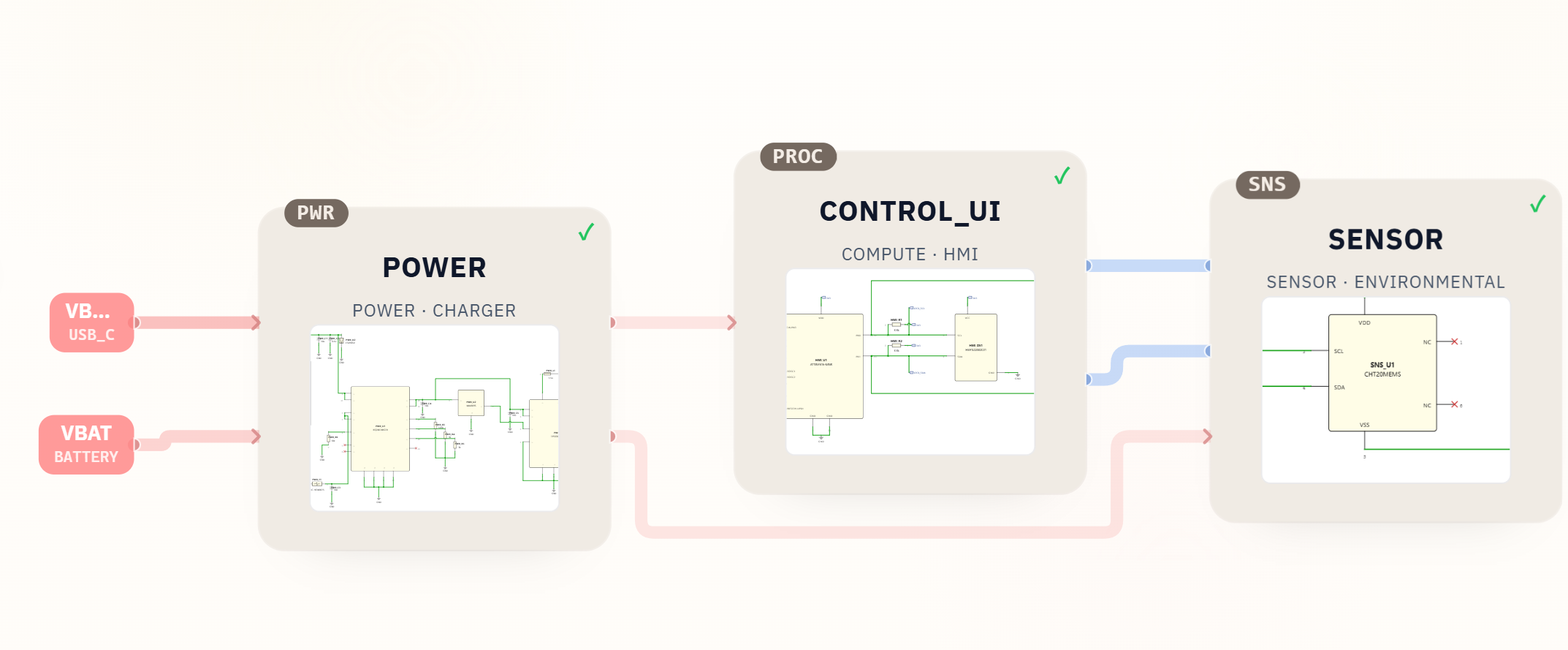
For SpeedUp, the right workflow is to describe the whole environmental sensor product, generate a structured KiCad first draft, and then review the sensor block in context. The real SpeedUp example below uses a CHT20MEMS temperature/humidity sensor, not a BME280. It is still useful because the same review questions apply to I2C environmental sensors: power, bus pullups, sensor placement, enclosure exposure, BOM/footprint validation, and layout constraints.
Why BME280 Schematics Need More Than Wiring Diagrams
Search results for bme280 schematic and bme280 circuit often show breakout-board pinouts, Arduino wiring diagrams, datasheets, and KiCad footprints. Those are useful, but they can make the sensor look easier than the product really is.
BME280 is an environmental sensor, so the schematic is only one part of the design. The product also needs decisions about:
- whether the board uses I2C or SPI
- I2C address selection and pullup values
- sensor supply voltage and logic domain
- local decoupling and power noise
- whether the sensor sits near a heat source
- whether airflow reaches the sensing port
- whether the enclosure traps heat or humidity
- whether conformal coating, dust, splash, or user handling can affect readings
- whether firmware sampling rate and power modes match the product goal
- whether the selected footprint, land pattern, and assembly process preserve the sensor opening
That is why a useful BME280 KiCad review should connect electrical, mechanical, firmware, and layout assumptions before PCB routing begins.
BME280 KiCad Schematic Checklist
Use this checklist before moving a BME280 environmental sensor block into PCB layout.
| Review area | What to check in KiCad | Why it matters before layout |
|---|---|---|
| Sensor variant | Confirm the exact BME280 part, package, lifecycle, and distributor availability. | BME280 availability and alternatives should be checked before the footprint is locked. |
| Interface mode | Decide I2C or SPI and wire the unused interface pins according to the datasheet. | Ambiguous interface wiring can create firmware and board bring-up failures. |
| I2C pullups | Check pullup values, bus voltage, number of devices, bus length, and expected speed. | Too-weak or too-strong pullups can make the bus unreliable or waste power. |
| Address pin | Set the I2C address intentionally and document it in the schematic. | Address conflicts are common when multiple sensors share the same bus. |
| Power domain | Verify VDD/VDDIO rails, voltage range, power sequencing, and local decoupling. | The sensor needs a stable logic and supply environment for reliable readings. |
| Test access | Add test points or accessible pads for SCL, SDA, VDD, ground, and reset/debug where practical. | Bring-up is easier when bus and rail signals can be measured. |
| Footprint | Validate the LGA footprint, orientation, courtyard, solder mask, paste, and assembly notes. | Environmental sensor packages are easy to misplace or rotate if the footprint is weak. |
| Placement | Keep the sensor away from chargers, regulators, processors, displays, LEDs, and warm copper. | Temperature/humidity readings drift when the sensor is warmed by the product itself. |
| Airflow | Add enclosure and layout notes for venting, keepouts, and access to ambient air. | A sealed or poorly vented enclosure can make a good sensor report bad data. |
| Firmware assumptions | Document sampling rate, power mode, calibration needs, and compensation behavior. | Firmware choices affect current consumption, response time, and measured accuracy. |
Designing an environmental sensor product?
Describe the BME280 interface, supply, I2C address, pull-ups, MCU, enclosure airflow, thermal isolation, and sampling behavior. Create a free account to start a reviewable, editable KiCad first draft.
The schematic does not need to solve every mechanical issue, but it should leave enough notes that the layout and enclosure teams do not bury the sensor in the wrong place.
I2C Review: Pullups, Address, and Bus Sharing
Most BME280 hobby examples use I2C, but a product schematic needs more than four wires.
Before layout, check:
- Are
SCLandSDAnamed consistently across the MCU and sensor sheets? - Are pullups placed once per bus, not accidentally duplicated on every module?
- Do the pullup values match the bus capacitance, logic voltage, power target, and speed?
- Is the BME280 address pin set intentionally?
- Are there other devices on the same bus with conflicting addresses?
- Does the MCU boot state leave the bus in a safe state?
- Are there test pads for bus debugging?
- If the sensor may be on a connector or cable, is the bus length still reasonable?
For low-power devices, I2C pullups are not just a signal-integrity detail. They also affect current draw whenever a line is low. A battery-powered environmental sensor should review both electrical reliability and standby power.
Placement and Enclosure Review
BME280 measures the environment around the chip, not the room in the abstract. A perfect schematic can still produce poor readings if the sensor sits next to warm components or is sealed inside an enclosure.
Review these placement decisions early:
| Placement issue | What to do | What can go wrong |
|---|---|---|
| Charger or regulator heat | Keep the sensor away from warm power parts and high-current copper. | Temperature readings drift high and humidity compensation suffers. |
| MCU/display heat | Keep the sensor away from processors, displays, LEDs, and backlights. | Local self-heating becomes part of the measurement. |
| Enclosure venting | Place the sensor near a vent or airflow path. | The sensor measures trapped enclosure air instead of ambient air. |
| Splash and dust | Use mechanical protection without blocking airflow. | Contamination or blocked openings can slow response and damage accuracy. |
| Coating and residue | Keep conformal coating, flux residue, and adhesives away from the sensing area. | Humidity response can be permanently degraded. |
| Board edge and keepout | Add a layout note for sensor clearance and keepout around the port. | Later layout may crowd the sensor with copper, connectors, or hot parts. |
This is where a KiCad schematic should include design notes, not just nets.
Example From a Real SpeedUp Project
The Temperature Humidity Sensor KiCad Project with USB-C Charging is a real SpeedUp-generated environmental sensor project. It does not use BME280; the generated sensor block uses CHT20MEMS. That distinction matters. We should not pretend one part is another.
The project is still a useful example because it shows how SpeedUp structures a sensor product around power, control/display, and environmental sensing blocks.
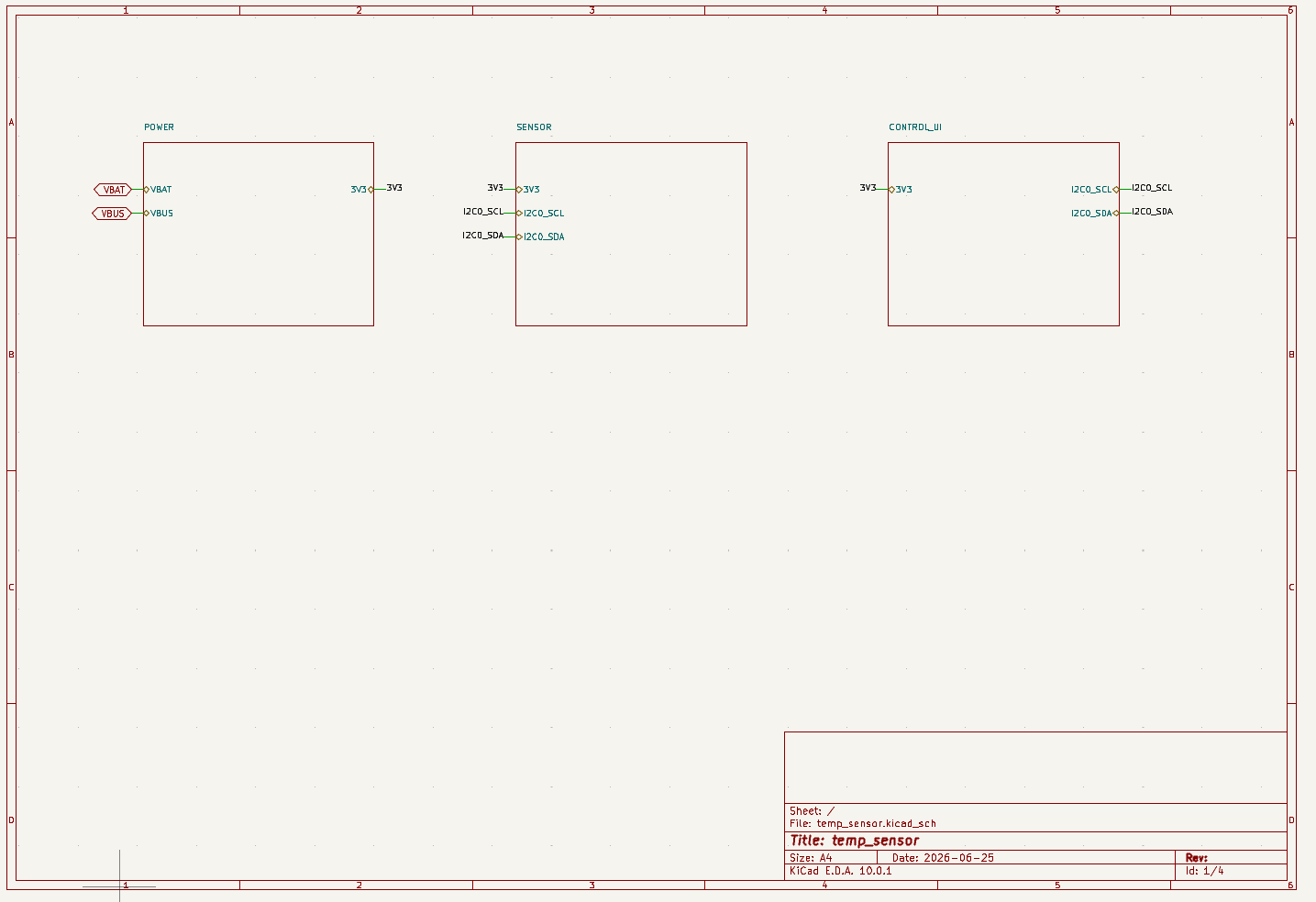
For a BME280 version, the sensor sheet would need the BME280 symbol and footprint, I2C or SPI wiring, address pin, local decoupling, placement notes, and firmware assumptions. The review process is the same: inspect the sensor as part of the whole product, not as a disconnected breakout-board block.
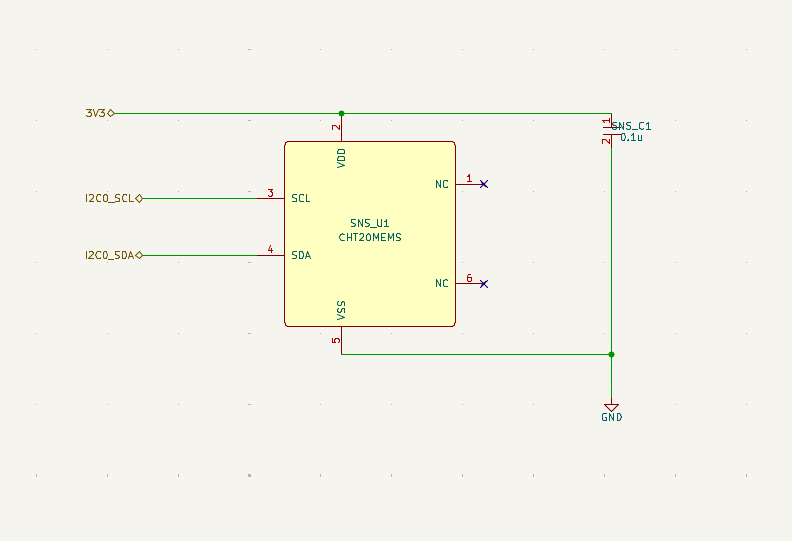
The strongest value is that the generated project is editable in KiCad. An engineer can swap the sensor choice, check the bus, review the footprint, and add layout notes before the design becomes a PCB.
What to Put in a SpeedUp Prompt for a BME280 Sensor Board
If you want a BME280-focused first draft, describe the device and the physical measurement problem, not only the part number.
Example prompt:
Design a battery-powered indoor environmental sensor as an editable KiCad project. Use a BME280 sensor for temperature, humidity, and pressure over I2C, with a 3.3 V MCU, USB-C charging, a small display, test points for I2C and power rails, and layout notes for sensor airflow, thermal isolation, enclosure venting, and no conformal coating near the sensor port. Generate a block diagram, modular KiCad schematic sheets, symbol/footprint assignments, and a BOM preview. Make the design a first engineering draft for review, not a production-ready reference design.
That prompt gives the generated design enough context to produce a reviewable schematic. It still needs human validation against the Bosch documentation, the chosen battery system, enclosure design, firmware behavior, and layout.
Common Mistakes
- Treating BME280 like a generic four-pin module instead of a precision environmental sensor.
- Forgetting to choose and document I2C vs SPI mode.
- Leaving the I2C address pin ambiguous.
- Duplicating pullups across multiple sensor boards or modules.
- Placing the sensor next to chargers, regulators, displays, MCUs, LEDs, or warm copper.
- Sealing the sensor in an enclosure without an airflow path.
- Letting conformal coating, flux residue, adhesive, or dust reach the sensing area.
- Moving to PCB layout before validating the footprint and assembly notes.
- Ignoring firmware sampling rate, sleep mode, and compensation behavior.
How SpeedUp Fits
SpeedUp can help turn a product prompt into a structured KiCad schematic draft. For a BME280 environmental sensor, that means the output can include a block diagram, power tree, sensor sheet, I2C bus, display or wireless interface, BOM preview, and review notes.
The generated design is a starting point, not a production reference design. Engineers still need to verify the Bosch datasheet, footprint, supply rails, bus timing, pullups, enclosure airflow, thermal isolation, firmware, calibration, sourcing, layout, and test plan. The value is speed to a reviewable KiCad project, not skipping review.
Related SpeedUp Projects and Guides
- Temperature Humidity Sensor KiCad Project with USB-C Charging – a real generated environmental sensor project with power, sensor, display, BOM, and downloadable KiCad files.
- Battery Powered Sensor Circuit Design Checklist – broader power and sensor review guidance for battery-operated devices.
- Schematic Review Checklist Before PCB Layout – use the complete review framework for requirements, power, interfaces, symbols, footprints, ERC, BOM, and layout handoff.
- What to Check Before Using an AI-Generated KiCad Schematic for PCB Layout – downstream layout readiness checks for generated KiCad schematics.
- KiCad Schematic Generator: From Product Prompt to Editable KiCad Project – the SpeedUp workflow for generating editable KiCad first drafts.
FAQ
What is BME280?
BME280 is a Bosch Sensortec environmental sensor for humidity, pressure, and temperature. Bosch describes it as a compact, low-power sensor for mobile and wearable applications, with I2C and SPI interface options.
Is BME280 the same as BMP280?
No. BMP280 measures pressure and temperature, while BME280 adds humidity sensing. If your project needs relative humidity, check that the part is actually BME280 and not BMP280.
Should a BME280 schematic use I2C or SPI?
Either can be valid. I2C is common for small sensor boards because it uses fewer MCU pins and can share a bus with other devices. SPI may be useful when the product needs different bus behavior. The schematic should make the interface mode explicit.
What should I check first in a BME280 KiCad schematic?
Start with the supply rail, I2C/SPI mode, address pin, pullups, local decoupling, footprint, test access, and placement notes. Then review enclosure airflow, thermal isolation, sampling rate, and firmware assumptions.
Can AI generate a BME280 sensor schematic?
AI can draft a first KiCad schematic block and place it inside a product architecture, but the design still needs engineering review against the Bosch documentation, layout constraints, enclosure airflow, firmware behavior, and test procedure.
Start Your Environmental Sensor Project
Turn your environmental sensor requirements into an editable KiCad first draft.
Use SpeedUp to turn the product requirements into structured schematic sheets and an editable KiCad first draft for engineering review. Create a free account to begin.
Comments
No comments yet.
Leave a Reply